Showing posts with label Graphic-Designing. Show all posts

Thursday, 19 December 2013

Differences in 2D and 3D Animation

By on 09:17


Animation

Animation is the process of creating a continuous motion and shape change illusion by means of the rapid display of a sequence of static images that minimally differ from each other. The illusion—as in motion pictures in general—is thought to rely on the phi phenomenon.
Animations can be stored or recorded on either analogue media, such as Flip book, motion picture film, and video tape, on digital media, including formats such as animated GIF, Flash animation or digital video. To display it, a digital camera, a computer, or a projector is used.
Animation creation methods include the traditional animation creation method and those involving stop motion animation of two and three-dimensional objects, such as paper cutouts, puppets and clay figures. Images are displayed in a rapid succession, usually 24, 25, or 30 frames per second.
2D Animation

The creation of moving pictures in a two-dimensional environment, such as through "traditional" cell animation or in computerized animation software. 
                                                                  

This is done by sequencing consecutive images, or "frames", that simulate motion by each image showing the next in a gradual progression of steps. The eye can be "fooled" into perceiving motion when these consecutive images are shown at a rate of 24 frames per second or faster.
3D Animation

3D Animation is a computer generated illustration that gives objects space. 
                                                                              

In 3D, the images and the graphics use three dimensions that give characters a depth, which makes them appear to be real and living. The graphic designers usually use computer software to give their pictures and image a life.
Difference between 2D and 3D Animation

There are a lot of differences between 2D and 3D animation. 2D animation was widely popular during the 19th century, although, with the advance of computer technology, 3D animation soon gained popularity. Today, the use of 3D animation is common for creating special effects in feature films. Both 2D and 3D are forms of animation, but the capabilities of each and the processes for creating them differ largely.
           Let us look at the differences between them.
-----------------------------------------------------------------------------------------------------
Creating Animation
----------------------------------------------------------------------------------------------------
Creating 3D animation is possible only on computers that are capable of using software applications such as Light Wave 3D or 3D Studio Max. However, creating 2D animation is possible on most computers, using simple software applications such as Adobe Flash. Creating 2D animation is also possible using a pad of paper, with distinct hand drawings rendered on each page to stir movement.
----------------------------------------------------------------------------------------------------
Objects
----------------------------------------------------------------------------------------------------
Objects in 2D are flat, just like a photograph or painting. When viewing the front of a building in 2D, it is the only part of the building that exists in the animation. In 3D, objects are more like sculptures. They will have every aspect – front, back, sides, top, and bottom. That’s why; one can view a 3D building from any angle.
----------------------------------------------------------------------------------------------------Camera
----------------------------------------------------------------------------------------------------
As a part of animation process, 3D animation applications use a virtual camera. This virtual camera has similar features that of an actual camera. The camera can also manipulate like an actual movie camera, which includes pans, zooms, and tracking shots. For 2D, such advance technology is not required.
----------------------------------------------------------------------------------------------------
Realism
----------------------------------------------------------------------------------------------------

Using 3D models and hyper-real textures, 3D animation can deliver viewing experience that are virtually similar to real life. On the other hand, even the highest quality 2D will still look like hand-drawn cartoon-like appearance.
----------------------------------------------------------------------------------------------------
Lighting
----------------------------------------------------------------------------------------------------
Similar to a virtual camera, 3D computer applications use virtual lights that can simulate any light, including the sunlight. With the application, multiple light sources or different colored lights can be created to deliver a variety of effects. Objects that pass through these lights project realistic shadows on other objects or the background in the scene. In case of 2D, shadows are only drawn by hand.
----------------------------------------------------------------------------------------------------
Special Effects
----------------------------------------------------------------------------------------------------
For 2D, special effects such as explosions, fire, smoke, water ripples, and so on need to be hand-drawn for each frame. In case of 3D, all these effects are created easily with the software plug-ins or filters. These plug-ins or filters will produce the animated effect automatically after assigning few parameters.


Wednesday, 18 December 2013

Video Editing Tips

By on 21:39


What is Video Editing?


Video editing is the process of manipulating and rearranging video shots to create a new work. Editing is usually considered to be one part of the post production process — other post-production tasks include titling, color correction, sound mixing, etc.
                                                  

Many people use the term editing to describe all their post-production work, especially in non-professional situations. Whether or not you choose to be picky about terminology is up to you. In this tutorial we are reasonably liberal with our terminology and we use the word editing to mean any of the following:
·           Rearranging, adding and/or removing sections of video clips and/or audio clips.
·           Applying color correction, filters and other enhancements.
·           Creating transitions between clips.


The following step must be followed to editing video to help your production shine
----------------------------------------------------------------------------------------------------
 Capture Enough Footage
----------------------------------------------------------------------------------------------------
When you begin to edit video, you want to create a flow that works, create emotion in the viewer, and entertain on some level. If you plan on producing the video footage that you will later use in video editing and it’s a good idea to film while keeping the editing process in mind. This means taking various shots of the same scene from different angles, using wide shots, and even panning. This will give you plenty of video to work with once you’re in the studio editing. The last thing any video editor wants is to realize, once they are working on the editing process, that they simply don’t have enough footage to create an ideal finished product.
----------------------------------------------------------------------------------------------------     Cut out the Needless Shots/Scenes
----------------------------------------------------------------------------------------------------
If you have done your job as a director, then you will have more footage that you could possibly use. This means that when you are video editing, you’ll need to cut out a great deal of footage. Sometimes there will be scenes or shots that, at the time of filming, might have been considered ideal. However, when you get in the suite to edit, you realize that the shot does not add to the story you’re trying to tell and can actually become a burden to it. Be willing to cut out anything no matter how much you like the scene when you are filming.
--------------------------------------------------------------------------------------------------- Keep the Story in Mind
----------------------------------------------------------------------------------------------------
Whether you are producing a full-length movie, a short film, or a five-minute seminar to post online, you have a story to tell. When it comes to video editing, it is vital that you keep that story in mind. Anything that does not add to the story needs to be left out of the video itself. You may think that a scene was shot extremely well, acted perfectly, and the lighting was ideal, but if that scene does not help move the story forward, it is considered clutter and needs to remain out of the final product.
There are a number of other video editing tips that can help you become a more effective video editor, but these are some of the most important and basic video editing tips that you can use right now.

Sunday, 15 December 2013

Video Editing software

By on 08:33

What is Video Editing?


Video editing is the process of manipulating and rearranging video shots to create a new work. Editing is usually considered to be one part of the post production process — other post-production tasks include titling, color correction, sound mixing, etc.

Many people use the term editing to describe all their post-production work, especially in non-professional situations. Whether or not you choose to be picky about terminology is up to you. In this tutorial we are reasonably liberal with our terminology and we use the word editing to mean any of the following:
·         Rearranging, adding and/or removing sections of video clips and/or audio clips.
·         Applying color correction, filters and other enhancements.
·         Creating transitions between clips.

Different Video Editing Products to Choose From


When you’re in the market for video editing products, you will find that there is a wide range of options available. You will find video editing software that range from free to several thousand dollars apiece.
Some video editing products are standalone features while others will be software programs for use on your computer. Before you make any decision on video editing programs, it’s advisable to try each one out and determine if it suits your preferences as well as your requirements.
----------------------------------------------------------------------------------------------------
Free Products
----------------------------------------------------------------------------------------------------
                                                                    

There are several free video editing products available for both Macs and PCs. These are decent programs that give you a foundation in the basics of video editing, but they will not be effective for more advanced or professional video editing requirements. If you don’t have any experience in prior video editing, then taking one of these free programs for a test drive will at least give you some fundamental foundations and the basic principles of video editing. The effects and features will be very limited and seem mundane.
----------------------------------------------------------------------------------------------------
Add-Ons
----------------------------------------------------------------------------------------------------
There are a number of add-on programs that can help make these free video editing products more effective, but without a more professional program, no amount of add-ons or updates will bring these beyond the level of a free software program.
----------------------------------------------------------------------------------------------------
More Professional Video Editing Products
----------------------------------------------------------------------------------------------------

If you plan on doing some professional video editing, then there are several products available to use on your computer. Adobe Video Software, Nero Software, Final Cut Pro, Corel Video Studio, Sony Vegas Digital Videos Software, and Pinnacle Digital Video Software are some of the biggest names in the business. Several of these products offer a range of packages from basic to what is considered pro. You will get more advanced editing features, effects and the ability to export video into a number of different platforms.

Each video editing professional will have his or her own opinions about which program is the best one to use. In most cases, when you are first starting out in video editing, investing in the professional line of any of these products may be a sound decision, but you will likely not take advantage of all the advanced features available in the Pro versions.
The best thing you could do is to sample each product that you are interested in. Some of these products offer free trials so that you can download them and take 15 or 30 days to try them out and see if they suit your needs. When you have the right video editing products, the process will not only be more enjoyable, but you will also create more stunning video to share with the world.


Sunday, 1 December 2013

11 free tools for automating repetitive tasks in Windows

By on 07:56


Anyone who's performed the same mindless task more than a dozen times will know the benefits of finding some tool to do the job for you. After all, why take five minutes to perform a set of repetitive commands when you might be able to press a single button, sit back and watch the task whizz by? In this feature we've dug out 11 free tools that are designed to do the hard work for Windows users, so you don't have to.
The tools in question cover a variety of different repetitive tasks: convert and edit a group of images, add AutoText to any application, rename a large group of files quickly, or create powerful scripts that automate processes and tasks across multiple programs and even Windows itself. There's a tool here for everyone, so sit back, press a button, and let your computer take the strain -- after all, that was one of the reasons you bought it in the first place.
11 free tools for automating repetitive tasks in Windows:-
---------------------------------------------------------------------------------------
1.   FastStone Image Viewer.
---------------------------------------------------------------------------------------
Don't be fooled by the name, FastStone Image Viewer does more than simply view images -- there's its superb Batch Convert/Rename tool for starters, accessible from the Tools menu. Select your images, and tick the boxes to rename or convert between various formats. If that's not enough, enable the advanced options and you can also resize, change canvas size, crop and rotate your photos, plus add watermarks, border effects and apply various adjustments (such as gamma or brightness). In short, everything you could possibly need for bulk photo processing. It's free for personal use and $34.95 for commercial use.
---------------------------------------------------------------------------------------
2.   PhraseExpress.
---------------------------------------------------------------------------------------
Ever wished you could apply AutoText outside of Microsoft Office? Phrase Express enables you to do just that. Unlike AutoText you can assign keyboard shortcuts to your favourite text shortcuts, use a scripting language to produce more complicated macros, and there's a nifty predictive text option that throws up suggestions based on what it detects you're typing. Again, it's only free for personal use -- prices start from $29.95.
---------------------------------------------------------------------------------------
3.   Format Factory. 
---------------------------------------------------------------------------------------
There are plenty of free tools for converting audio, video and photos between different formats, but Format Factory is unique in handling all three types with aplomb. Better still, it can mix and match different processing tasks in one batch, so you choose your files and how you want them converted, then leave it to its own devices.
---------------------------------------------------------------------------------------
4.   Rename Master.
---------------------------------------------------------------------------------------
If you find yourself facing the mind-numbing prospects of renaming a group of files, Rename Master will do the job for you in a fraction of the time. You can add, remove, append or replace part or all of the filename easily, and a built-in preview means you can easily exactly what you'll get before committing to the change. If you're struggling to get your MP3 player to play or display music tracks in the correct order, this is just the tool: just drag and drop the tracks into the desired order, then append a two-digit number to the beginning of each track.
---------------------------------------------------------------------------------------
5.   Quick Search & Replace.
---------------------------------------------------------------------------------------
One of the drawbacks of find and replace is that it only works on the currently open file. Quick Search & Replace enables you to search entire folders or drives for matching text strings in ASCII file -- use wildcards to limit your search to specific files or types -- then use the Search & Replace tab to make sweeping changes quickly.
---------------------------------------------------------------------------------------
6. AMP WinOFF.
---------------------------------------------------------------------------------------
If you want to shut down, restart or put your computer into low-power mode at a specified time (or after a set period of time) then AMP WinOFF is the tool for you. It's particularly suited for that file server you installed in the attic.
---------------------------------------------------------------------------------------
7.Soluto. 
---------------------------------------------------------------------------------------
If your PC is sinking under the weight of all those programs competing for resources at startup, then you'll need to reclaim control of what starts with Windows. But rather than manually wade through the whole list working out what's required and what isn't, why not let Soluto do all the hard work for you? It'll analyse your startup and make recommendations on programs you can safely disable or -- if they're useful but not essential -- delay until your PC's in a better position to process them.
---------------------------------------------------------------------------------------
8. AlacrityPC.
---------------------------------------------------------------------------------------
Here's the rub: you've got a great game or application, but it's so demanding you have to constantly close down other programs and services to eke every last bit of performance from it. Doing this manually is -- at best -- a complete hassle, so instead use AlacrityPC to create special scripts that can optimise your PC prior to launching a particular program. Better still, once you quit out of that program, all those services and apps you closed down magically reopen again as if nothing happened. Separate 32-bit and 64-bitbuilds are available.
---------------------------------------------------------------------------------------9. Print Conductor.
---------------------------------------------------------------------------------------
Need to print a load of documents in a hurry? Print Conductor might be the solution you need. It supports up to 16 file types, assuming you have the required programs (including Word, Excel, PowerPoint, and Adobe Reader) installed. Sadly, the program cannot print web pages if you have IE8 or later installed as it doesn't recognize the installation.
---------------------------------------------------------------------------------------
10. Batchrun.
---------------------------------------------------------------------------------------
Batchrun is designed to help create simple batch files for launching programs, performing various file tasks and killing processes (gracefully or otherwise).
---------------------------------------------------------------------------------------
11. AutoHotKey.
---------------------------------------------------------------------------------------
AutoHotKey enables you to create your own macros for use in any -- or selected -- programs. Either program your own scripts or -- if you're lazy like us -- record a combination of keystrokes and mouse clicks to generate your macro. It's based on AutoIt for those who want something even more powerful -- if equally more complicated.


Saturday, 30 November 2013

Top 5 Free Online Video Converter

By on 21:31


Why should use free online converter?
---------------------------------------------------------------------------------------
File conversion is common nowadays with several applications available, allowing users to easily convert a file from one format to another to be played on a specific player or device. There are web based converters and there are also those that require setup. However, a lot of people prefer to use an online video converter because it does not require installation, which is convenient for those who do not want to undergo the process of downloading and installing a program on their computer. Furthermore, most of these online converters are available at no cost and they usually work on any browser so you can use them both on Windows and on Mac. Here are five of the free online converters that you may check out.


Free online video converter:-

---------------------------------------------------------------------------------------
---------------------------------------------------------------------------------------
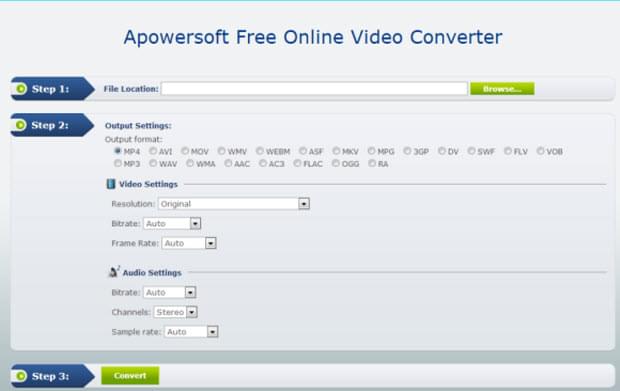
This is one of the best conversion tools that you can find online. It is free, easy to use and it has a simple user interface. Conversion can be done in three quick steps. It also supports various video and audio formats and let you choose your video and audio settings.
This free online video converter for Mac and Windows can convert any videos you like with no time limit. You can also convert as many videos as you want. Some free converters set limits on the length and number of videos you can convert, making Apowersoft Free Online Video Converter a good option, especially if you have several videos to convert. With this application, you just have to select the video that you want to convert, choose the preferred output and settings, start the conversion process and you will get the converted video in a few seconds or minutes.Free converter
---------------------------------------------------------------------------------------
---------------------------------------------------------------------------------------
Another online tool that you can use for converting videos to another format like AVI, 3GP, MP4 and AVI is convert.Files. You can convert a video that is saved on your computer or a video that is uploaded online. Choose the output format by clicking on the drop down arrow and click the convert button. You also have the option to send a download link to your e-mail in case you wish to download it for a later time. Aside from videos, it also allows conversion of other types of files including documents, presentations, audio, e-books and images. However, conversion takes time as the file is uploaded to the site first before being converted. Once done with the upload and conversion, you will be given a link where you can download the converted file.
convert.flles
---------------------------------------------------------------------------------------
---------------------------------------------------------------------------------------
This is a free online video conversion tool that lets you convert videos from links, by browsing YouTube or selecting files saved on the computer. However, there is a limit on the size and number of videos that you can convert. For unlimited number of conversions and higher video size limit, you may need to get a premium account. But if you want it for free, then you will be limited on your video conversions.
Mediaconverter
---------------------------------------------------------------------------------------
---------------------------------------------------------------------------------------
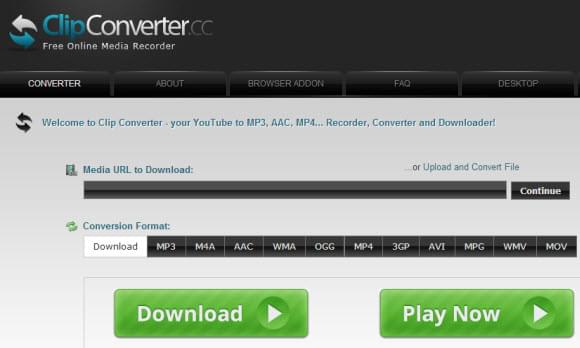
With this web based tool, you are able to download and convert videos from various video sharing sites including YouTube, Daily Motion and Direct Download. Moreover, you can watch your videos on various devices like your computer, laptop, tablet, PSP and mobile device. Copy and paste the URL of the video on the correct field, choose the output format and click Continue. Click the start button to start the conversion process, which could take some time. Another window will open that contains the option to download the converted file. Click the download button and wait for the process to complete.
clipconverter
---------------------------------------------------------------------------------------
---------------------------------------------------------------------------------------
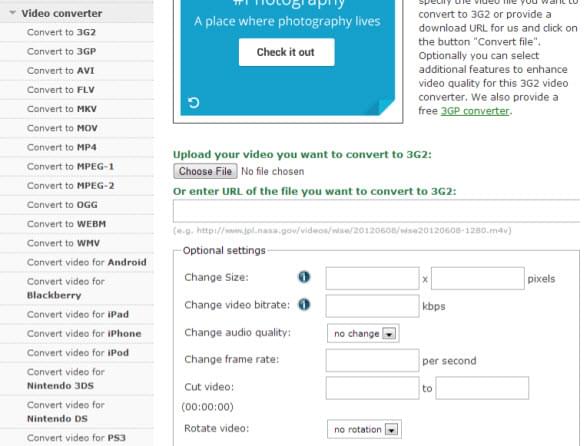
This site allows you to free convert videos online by clicking the right option on the left side of the page based on the format that you prefer. Some of the video formats supported are AVI, FLV, MOV and MP4. There is a separate link for converting videos for each of these formats. For instance, if you wish to convert a video to AVI, then you need to select on the convert to AVI link.

All of these online applications let you convert videos to other formats for free. However, Apowersoft Free Online Video Converter is the best option because it allows faster and unlimited conversions. Other converters set limits on the number and length of videos that you can convert and they often take time because videos are uploaded on the site before being converted.

File converter