Showing posts with label Learning. Show all posts

Monday, 23 December 2013

make money online

By on 07:29


Earning money on internet is not much difficult which we consider .But some student search on the Internet to find the possible way to earn money online through internet but they lead to some cheat sites, which are ready to hunt them instantly. Cheat sites usually called that type of site which is asked for pay registration fees through pay pall account or credit card and they will approve your account and provide the account which will help them to earn money online.
But the most important question is that.
Can students really make money?
And how can students really make money?
The answer of above two questions is solved to define the popular methods that are mostly used by students to earn money through internet.


But the important thing which is must be necessary for earn money online.
Ø  You should know how to operate computer and internet.
Ø  You should understand and writing English.
Ø  You should consistent and hard working.
Poplar methods for online earning:
=======================================================================
Method No 1
=======================================================================
                                            The first method is earning via blogging but the important for blog is how, and which type of Blog make and it’s depending on your mind.

Here are few ideas that you may like.
Ø  Start a news website. You can take the news from TV. As soon as news appears post it on you blog before anyone else do.
Ø  Make a celebrity blog, talk about films, release dates, hero, heroines, scandals and more.
Make a sms or poetry blog.
Ø  Jobs, funny pictures, technology are also good ideas.
Ø  Everything works on internet if is done in a good way.
Ø  Make a blog on cricket or football are any sport and write the update posts on your blog.
How to earn money by blogging?
In By blogging students can make money online using display advertisement and the most known to everyone is Google absence and the alternative of Google absence which is Info links. And the other such is ad wager, chitika etc.  
Remembers?
In blogging you never copy the content of any one but you can read the content of other blogger and get the concept from that content and right your best one and mention those information which is skip that blogger.
=======================================================================  
Method No 2
=======================================================================

Earning via Freelancing

                                                                The freelancing is the best alternative of blogging. In freelancing you must enter to the site which is Freelancer.com and Elance.com the both sites of Freelancing.
Sign up for new user and register himself with Freelancer or Elance. These are the sits where a lot of people required the staff for specific jobs like article writing, logo making, and application development. They will give you work if you are approved and your eligible for that work and you will be responsible to complete that work an specified time spam. After completing your work send it to freelancer and the specific charges of that work will be charge to you.
=======================================================================
Method No 3
=======================================================================

Earning via YouTube

                                        The students can also earn money through YouTube.

How to earn money on YouTube?

The students can earn money on YouTube to creating your own Video Tutorials, Reviewing Websites or Products like cell phones, Tablets then surely you can become a YouTube Partner .


Thursday, 12 December 2013

how to cut video using vlc media player

By on 00:52
Recently, we discussed how we can use Windows Movie Maker as a video cutter to separate out segments from videos easily. I agree the process to cut videos is very simple, but if you are looking for an even easier way to cut out small video segments and are an ardent VLC media player fan then you could do use it as a video cutting tool too.


                                                              Large Orange VLC media player Traffic Cone Logo
One more advantage of using VLC is that people, who use other operating systems like Ubuntu, Fedora or Mac and hence cannot use the Windows Movie Maker, can also use the cross-platform VLC to cut out video clips.
---------------------------------------------------------------------------------------------------     
What is VLC?
----------------------------------------------------------------------------------------------------
VLC is a free and open source cross-platform multimedia player and framework that plays most multimedia files as well as DVD, Audio CD, VCD, and various streaming protocols. VLC is made by the non-profit foundation VideoLAN.
---------------------------------------------------------------------------------------------------     
Features of VLC
----------------------------------------------------------------------------------------------------
ØSimple, fast and powerful media player.
Ø Plays everything: Files, Discs, Webcams, Devices and Streams. 
ØPlays most codecs with no codec packs needed:
MPEG-2, DivX, H.264, MKV, WebM, WMV, and MP3... 
ØRuns on all platforms: Windows, Linux, Mac OS X, and UNIX... 
ØCompletely Free, 0 spyware, 0 ads and no user tracking. 
ØCan do media conversion and streaming.

----------------------------------------------------------------------------------------------------Download VLC
----------------------------------------------------------------------------------------------------
You must download and install the latest version of VLC media player if you don’t have it already. VLC is an excellent player that plays most of the multimedia files as well as video discs and various streaming protocols.

Once you have installed VLC latest version follow the following steps:
----------------------------------------------------------------------------------------------------
Step 1
----------------------------------------------------------------------------------------------------
Launch the VLC media player and then click on view button under menu bar. After click on view the drop down menu is opened select the advance control.

---------------------------------------------------------------------------------------
Step 2
---------------------------------------------------------------------------------------
When you activate the advanced controls you will see four extra buttons above the normal play/pause button. We will use the first button from the left called the record button.


----------------------------------------------------------------------------------------------------
Step 3
----------------------------------------------------------------------------------------------------
Once you have these controls activated add your video. You can use Open File located under the Media menu, but as you know I always prefer drag and drop method.
----------------------------------------------------------------------------------------------------
Step 4
----------------------------------------------------------------------------------------------------
Basically we will not be cutting the video here; we will rather play the video and record the segment using the built-in VLC decoder. So seek to the position you want to start your recording and press both play and record button simultaneously.
----------------------------------------------------------------------------------------------------
Step 5
----------------------------------------------------------------------------------------------------
Again press the Record button when you want to stop the recording. The clip will be automatically saved as an MP4 media file type in your Libraries/Videos folder in Windows 8. I am not sure about Windows XP but you can search for it in either My Documents or My Videos. Similar for the other operating systems.


Wednesday, 11 December 2013

Host files on rapidshare

By on 07:11

Rapidshare is file hosting service, famous file hosting service. It allow the user download and upload file-once a file is uploaded the user can give the download link to others, they can then download that file. When downloading a file, you wait around forty-five second if you are a free users, however if you own a premium account you get much better speeds to download, and there’s no waiting time.

This is certainly the most popular file hosting destination. While it allows for only
10GB it free account.
Here are the steps to use www.rapidshare.com in easy file hosting your files:
---------------------------------------------------------------------------------------
Step 1
---------------------------------------------------------------------------------------Using your web browser, go to http://www.rapidshare.com.
------------------------------------------------------------------------------
Step 2
---------------------------------------------------------------------------------------
Click on Rapidshare simple smart. Which is show in below pictures?

---------------------------------------------------------------------------------------
Step 3
---------------------------------------------------------------------------------------
After click on above window the three options in display:
Ø Standard: It is use for free file hosting Ideal for documents and images hosting of file up to 10GB.
Ø Standard Plus: It is use premium 8.21 euro per month. Ideal for document music and high quality pictures hosting of file up to 300GB.
Ø Premium: Register in 16.43 euro per month. Ideal for hd home video with full speed file hosting is up to 700GB
---------------------------------------------------------------------------------------
Step 4
---------------------------------------------------------------------------------------
Sign up for 10GB

---------------------------------------------------------------------------------------
Step 5
---------------------------------------------------------------------------------------
Confirmation message is send from your account click on confirmation link and vary your account please note that the email must be correct.

---------------------------------------------------------------------------------------
Step 6
---------------------------------------------------------------------------------------
Use Rapidshare 1-Click method of web hosting. Start on the homepage and locate the Upload option.


---------------------------------------------------------------------------------------
Step 7
---------------------------------------------------------------------------------------

Browse through your files to locate the file you wish Rapid Share to host. Click the "Upload!”icon.
And click on open.


---------------------------------------------------------------------------------------
Step 8
---------------------------------------------------------------------------------------

Record the exact download URL. After your file has been uploaded, you will be given a unique URL.
----------------------------------------------------------------------------------------------------
Step 9
----------------------------------------------------------------------------------------------------

Share the URL address with friends and customers. If you wish others to access your file on Rapidshare, you need to send them the correct URL address.
----------------------------------------------------------------------------------------------------
Step 10
----------------------------------------------------------------------------------------------------
Expect files to be deleted after 90 days if they have not been used in that time frame. With a free account, Rapidshare routinely goes through the files and deletes unused files. With a premium account, they won't touch your files and you'll have to manually delete them.


Monday, 9 December 2013

How to easily share files on filesavr

By on 23:22


At File Savr you can upload files of up to 5 GB(max). There is no public file library, but files may not be considered private as the file name may be guessed. There is no time cap on how long items will be stored, the only limitation being that they must be downloaded on a regular basis.
large file hosting and sharing

The process of uploading files is as simple as it could be. There are no sign-ups, email requests or confirmations. Just click the “upload” button, select the file you want to host, and wait until it gets uploaded to FileSavr. Once finished, bookmark the file URL and use it to share and download files from any computer.

Features:

Ø  Host and share large files online. Max. File size 5 GB(max).
Ø  No sign-ups download countdown timers or pop up ads.
Ø  Share files with others by forwarding a URL.
Ø  The files are kept online as long as they are regularly downloaded.

Here are the steps to use www.filesavr.com in sharing your files:
---------------------------------------------------------------------------------------
Step 1
---------------------------------------------------------------------------------------Using your web browser, go to http://www.filesavr.com.
---------------------------------------------------------------------------------------
Step 2
---------------------------------------------------------------------------------------


Click on the Upload File  
---------------------------------------------------------------------------------------
Step 3
---------------------------------------------------------------------------------------
After click on Upload File the new window will be opened which is show in below picture?


Select the required file and then click on open but make sure the file mast is less than 5GB (MAX).
The Upload process is continuing...


---------------------------------------------------------------------------------------
Step 4
---------------------------------------------------------------------------------------
Then the file is uploaded. When done uploading, you shall be redirected to the associated download page. In that page, there are two (2) download options available. First, is you can copy the link in the box called Download Link. You can select the entire link, and then press Ctrl+C to copy the link.

This is also the link that you can give to people whom you intend to share the uploaded file to.
---------------------------------------------------------------------------------------
Step 5
---------------------------------------------------------------------------------------
Tell your friend the download URL link.
---------------------------------------------------------------------------------------Step 6
---------------------------------------------------------------------------------------
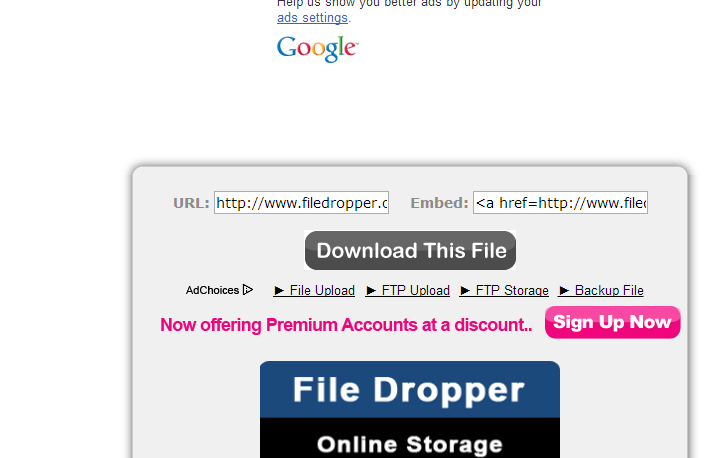
To download upload file by everyone.
Copy the download link address and past it in address bar of web browser and press enter. The page which is given below will open.


Click on download this file.
---------------------------------------------------------------------------------------
Step 7
---------------------------------------------------------------------------------------
After clicking on download this file the following window will be open.

Enter the captcha code in text box below from that code and then click on download now.
---------------------------------------------------------------------------------------
Step 8
---------------------------------------------------------------------------------------
The download process will start automatically.

Saturday, 7 December 2013

How to make USB bootable for window 8

By on 07:33


USB boot means to make USB bootable and install the operating system in computer from your USB drive.
So here are step-by-step procedures how to make USB bootable
---------------------------------------------------------------------------------------
Step 1
---------------------------------------------------------------------------------------
Put the Windows DVD in a drive (or mount the ISO) and make note of the drive letter.  In my case it is drive G:
---------------------------------------------------------------------------------------Step 2
---------------------------------------------------------------------------------------
Put in the USB Thumb Drive Key in the computer and make note of the drive letter and the size of the disk.   In my case it is E: and 3.8 GB
---------------------------------------------------------------------------------------
Step 3
---------------------------------------------------------------------------------------
You need to run an elevated command prompt. Mouse over to the right top corner (widow 8) and hold for a second then click on search and  then  right in search box CMD.

InstallWindows8-USBKey-MyComputer

---------------------------------------------------------------------------------------
Step 4
---------------------------------------------------------------------------------------
Next you will run Diskpart to prepare the disk for the OS  {question mark “?” below should be replaced with the disk number of the drive you are using}
Diskpart
 List disk
 Select disk?
Clean
 Create partition primary
 Select partition 1
Active
 Format fs=ntfs quick label=”Win8-RP-x64”
Exit
 Leaving DiskPart... –
---------------------------------------------------------------------------------------
Step 5
---------------------------------------------------------------------------------------

Now we need to copy the boot sector.  You should still be in the command prompt window.
C:\Windows\system32>g:
 G:\>cd boot
 Run "bootsect /help" for detailed usage instructions.
G:\boot>bootsect /nt60 e:
Target volumes will be updated with BOOTMGR compatible bootcode.
Bootcode was successfully updated on all targeted volumes.
 G:\boot>exit